
How to merge PDF files online — free and fast
Learn to merge PDF files efficiently. Understand PDF merging workflows, page ordering, file size considerations, and best practices for combining documents.
What is the Merge PDF?
PDF merging combines multiple PDF documents into a single file, useful for organizing related documents, creating comprehensive reports, or preparing materials for distribution. The process maintains the original formatting of each source PDF while concatenating pages in the specified order. Understanding PDF structure is important—merged PDFs preserve fonts, images, and layout from source files, but bookmarks and internal links may need adjustment. Browser-based merging offers convenience and privacy since files never leave your device. This is particularly valuable for sensitive documents like financial records, legal papers, or personal information that shouldn't be uploaded to cloud services.
Step-by-Step: How to Use It
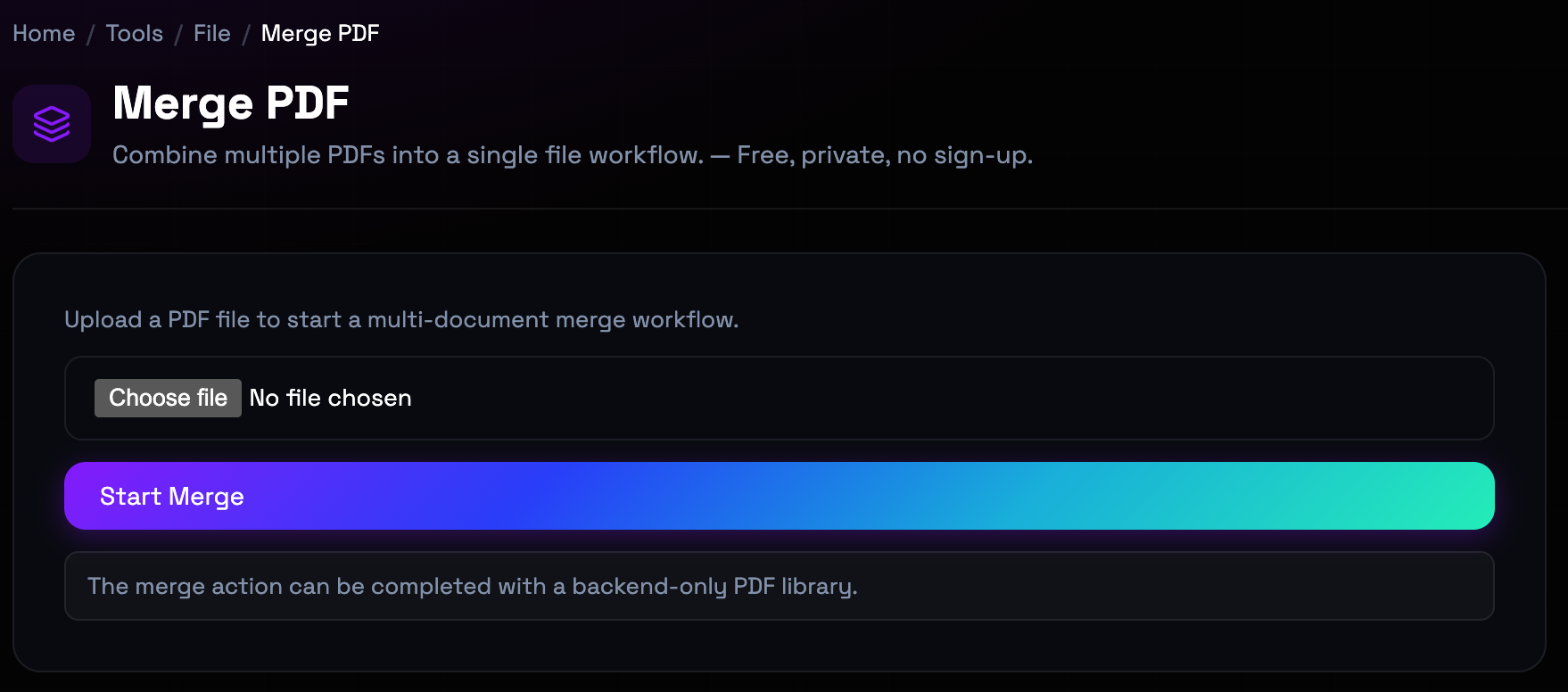
- Upload PDF Files: Click upload or drag and drop multiple PDF files into the merge area. You can upload files in any order initially. (upload drop zone with multi-file support)
- Arrange Page Order: Drag and drop file thumbnails to reorder them. The order shown is the order pages will appear in the merged PDF. (file list with drag handles for reordering)
- Review File List: Verify that all files are present and in the correct order. Remove any unwanted files by clicking the delete icon. (file preview list with remove buttons)
- Merge and Download: Click the merge button to combine all PDFs into a single document. Download the merged file when processing completes. (merge button with progress indicator and download)
Top Use Cases
- Document Compilation: Combine related documents like chapters, reports, or sections into a single cohesive PDF for easier distribution and reading. Example: A researcher merges individual chapter PDFs into a single dissertation document for submission to their committee.
- Invoice and Receipt Organization: Merge multiple invoices, receipts, or financial documents into monthly or quarterly PDFs for accounting and record-keeping. Example: A small business owner merges all receipts from March into one PDF for tax preparation and expense tracking.
- Legal Document Assembly: Combine contracts, exhibits, and supporting documents into a single PDF for legal filings or client presentations. Example: An attorney merges the main contract, amendments, and exhibits into one PDF for client review and signature.
- Educational Material Distribution: Teachers merge worksheets, handouts, and reference materials into single PDF packets for students. Example: A teacher merges a reading passage, questions, and answer key into one PDF for a complete lesson packet.
Things to Watch Out For
- File Size Growth: Merged PDFs can become very large, potentially exceeding email attachment limits or causing slow downloads. Workaround: Consider compressing the merged PDF if size is an issue. For very large documents, consider splitting into logical sections instead of one massive file.
- Page Size Inconsistency: Source PDFs with different page sizes (letter, A4, legal) will retain their original sizes in the merged document, creating inconsistent layouts. Workaround: Standardize page sizes before merging using PDF editing tools, or accept that the merged document will have mixed page sizes.
- Bookmark and Link Loss: Internal bookmarks, links, and navigation elements from source PDFs may not function correctly in the merged document. Workaround: After merging, use PDF editing software to recreate bookmarks and navigation if needed. This is particularly important for long documents.
- Encrypted PDFs: Password-protected or encrypted PDFs cannot be merged without first removing the security restrictions. Workaround: Unlock encrypted PDFs using the original password before attempting to merge. Be aware of copyright and access restrictions when handling protected documents.
Frequently Asked Questions
Is there a limit to how many PDFs I can merge at once?
Our tool handles up to 20 PDF files in a single merge operation, which covers most practical use cases. Each file can be up to 10MB. For larger batches, merge in groups and then merge the resulting files. The total merged file size should be kept under 50MB for optimal browser performance. If you need to merge hundreds of files, consider desktop software designed for batch processing.
Will merging PDFs affect the quality of images and text?
No, merging PDFs does not degrade the quality of the content. The process simply concatenates the pages from source files without re-encoding or recompressing the images and text. The merged PDF maintains the exact same quality as the original source files. However, if you subsequently compress the merged PDF to reduce file size, that compression step may affect quality depending on the settings used.
Can I merge password-protected PDFs?
No, our tool cannot merge password-protected or encrypted PDFs directly. You must first remove the password protection using the original password. Once unlocked, the PDFs can be merged normally. Be cautious when handling protected documents—ensure you have the legal right to remove security and merge the files. Some documents may have restrictions that prevent modification even with the password.
What happens to page numbers when merging PDFs?
Page numbers from source PDFs are preserved as they appear in the original documents. The merge process does not automatically renumber pages. If you need continuous page numbering across the merged document, you'll need to use PDF editing software after merging to add new page numbers. This is common when merging chapters of a book or sections of a report where you want sequential numbering throughout.
Can I merge PDFs with different page orientations?
Yes, you can merge PDFs with mixed page orientations (portrait and landscape). Each page retains its original orientation in the merged document. This means your merged PDF may have some pages in portrait and others in landscape, which is normal and acceptable for many documents. If you need consistent orientation, you'll need to rotate pages before or after merging using PDF editing tools.
Is my data safe when using an online PDF merger?
Our PDF merger processes files entirely in your browser using JavaScript. Your files are never uploaded to our servers or stored anywhere. This ensures complete privacy and security for your documents. All processing happens locally on your device. This is particularly important for sensitive documents like financial records, legal papers, or personal information. The merged file is generated in your browser and downloaded directly to your device.