
How to use a JSON Formatter for code beautification
Learn to format, validate, and debug JSON data effectively. Understand JSON structure, common errors, and best practices for working with APIs and configuration files.
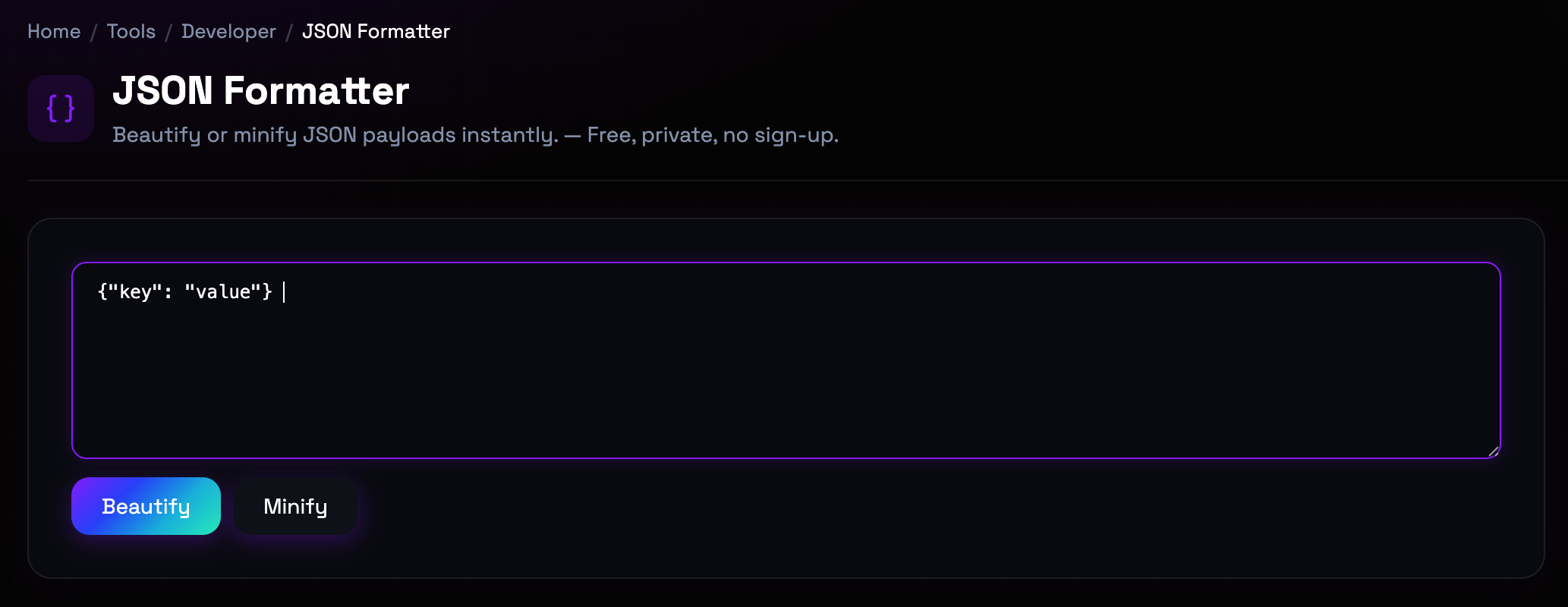
What is the JSON Formatter?
JSON (JavaScript Object Notation) is a lightweight data interchange format that's become the standard for APIs, configuration files, and data storage. Raw JSON is often minified—removing whitespace to reduce size—which makes it difficult for humans to read and debug. JSON formatters restore proper indentation and line breaks, revealing structure and hierarchy. Beyond formatting, validation checks for syntax errors like missing commas, mismatched brackets, or unquoted keys. Understanding JSON structure and common formatting issues is essential for developers working with modern web services and configuration management.
Step-by-Step: How to Use It
- Paste or Load JSON: Paste your JSON code into the input area or load from a file. The tool accepts JSON up to 1MB in size. (text input area with file upload button)
- Choose Operation: Select Format (beautify), Validate (check syntax), or Minify (remove whitespace). Format is the most common operation. (operation selector buttons (Format/Validate/Minify))
- Set Indentation Preference: Choose between 2 spaces, 4 spaces, or tabs for indentation. Most projects use 2 or 4 spaces for consistency. (indentation dropdown menu)
- Process and Copy: Click the action button to process your JSON. The formatted output appears instantly with syntax highlighting. (process button with copy to clipboard option)
Top Use Cases
- API Response Debugging: API responses typically return minified JSON that's hard to read. Formatting reveals the structure, making it easier to understand data relationships. Example: A weather API returns a 5KB minified response. Formatting it shows nested objects for current conditions, forecasts, and location data clearly.
- Configuration File Editing: Configuration files like package.json, tsconfig.json, and .eslintrc use JSON. Formatting makes these files easier to edit and maintain. Example: Editing a complex package.json with 50 dependencies: formatting groups dependencies alphabetically and shows the hierarchy clearly.
- Data Validation: Before processing JSON data in applications, validation catches syntax errors that would cause runtime failures. Example: Loading user data from a file: validation reveals a missing comma on line 23 that would have caused a parsing error in your application.
- Code Review and Collaboration: Consistently formatted JSON is easier to review in pull requests and collaborate on with team members. Example: A team agrees on 2-space indentation. The formatter ensures all JSON files match this standard, reducing review friction.
Things to Watch Out For
- Trailing Commas: JSON does not allow trailing commas (commas after the last item in arrays or objects), unlike JavaScript. These cause validation errors. Workaround: Remove trailing commas before validation. Some formatters automatically strip them, but don't rely on this for strict JSON compliance.
- Unquoted Keys: JSON requires all object keys to be double-quoted. Unquoted keys work in JavaScript but fail JSON validation. Workaround: Ensure all keys are wrapped in double quotes. Single quotes are not valid in JSON—use double quotes exclusively.
- Comments in JSON: Standard JSON does not support comments. Adding // or /* */ comments causes parsing errors in strict JSON parsers. Workaround: For configuration files that need comments, consider JSONC (JSON with comments) or use alternative formats like YAML. Remove comments before validation.
- Large File Performance: Very large JSON files (10MB+) may slow down browser-based formatters due to memory and processing limitations. Workaround: For large files, use command-line tools or split into smaller sections. Our tool handles up to 1MB efficiently in the browser.
Frequently Asked Questions
What's the difference between JSON and JavaScript objects?
JSON is a text-based data format, while JavaScript objects are in-memory data structures. JSON is a subset of JavaScript object literal syntax but with stricter rules: all keys must be double-quoted, trailing commas are not allowed, and comments are not permitted. JavaScript objects are more flexible—they can have unquoted keys, trailing commas, and comments. JSON is used for data interchange and storage, while JavaScript objects are used within applications.
Why does my JSON fail validation even though it looks correct?
Common validation errors include: missing commas between items, trailing commas after the last item, using single quotes instead of double quotes for keys, unquoted keys, or comments in the JSON. Another issue is mismatched brackets—every opening { or [ must have a corresponding closing } or ]. The validator will show the specific error location, making it easy to identify and fix the problem.
Should I use 2 spaces or 4 spaces for JSON indentation?
The choice depends on your project's conventions. Many JavaScript projects use 2 spaces (consistent with Prettier and Airbnb style guides). Some projects prefer 4 spaces (consistent with Python and some legacy conventions). Tabs are rare in JSON due to cross-platform display issues. The key is consistency within your project. Our tool supports all three options—choose the one that matches your team's standards.
Can I format JSON that contains JavaScript code or functions?
No. Standard JSON only supports data types: strings, numbers, booleans, null, arrays, and objects. It does not support functions, undefined, dates, or regular expressions. If your JSON contains functions, it's actually JavaScript, not JSON. You'll need to remove or convert functions to data before formatting. For dates, convert to ISO 8601 strings. For functions, consider whether they should be data or moved to separate code files.
What's the difference between minifying and formatting JSON?
Formatting (beautifying) adds whitespace, line breaks, and indentation to make JSON human-readable. Minifying removes all unnecessary whitespace to reduce file size. Minified JSON is typically 20-30% smaller than formatted JSON. Use minified JSON for production APIs and data transmission to reduce bandwidth. Use formatted JSON for development, debugging, and configuration files where readability matters. Our tool supports both operations.
How do I handle special characters in JSON strings?
JSON strings require escaping certain special characters with backslashes: double quotes (") become \", backslashes become \\, newlines become \n, tabs become \t, and other control characters use Unicode escapes like \uXXXX. Our formatter automatically handles proper escaping when you paste content. If you're manually editing JSON, ensure special characters are properly escaped to avoid parsing errors.
Ready to get started?
Access the tool immediately. No sign-up or credit card required.
Open JSON Formatter