
How to compress images online without losing quality
Learn how to compress images effectively while maintaining visual quality. Understand compression algorithms, quality settings, and optimization techniques for web performance.
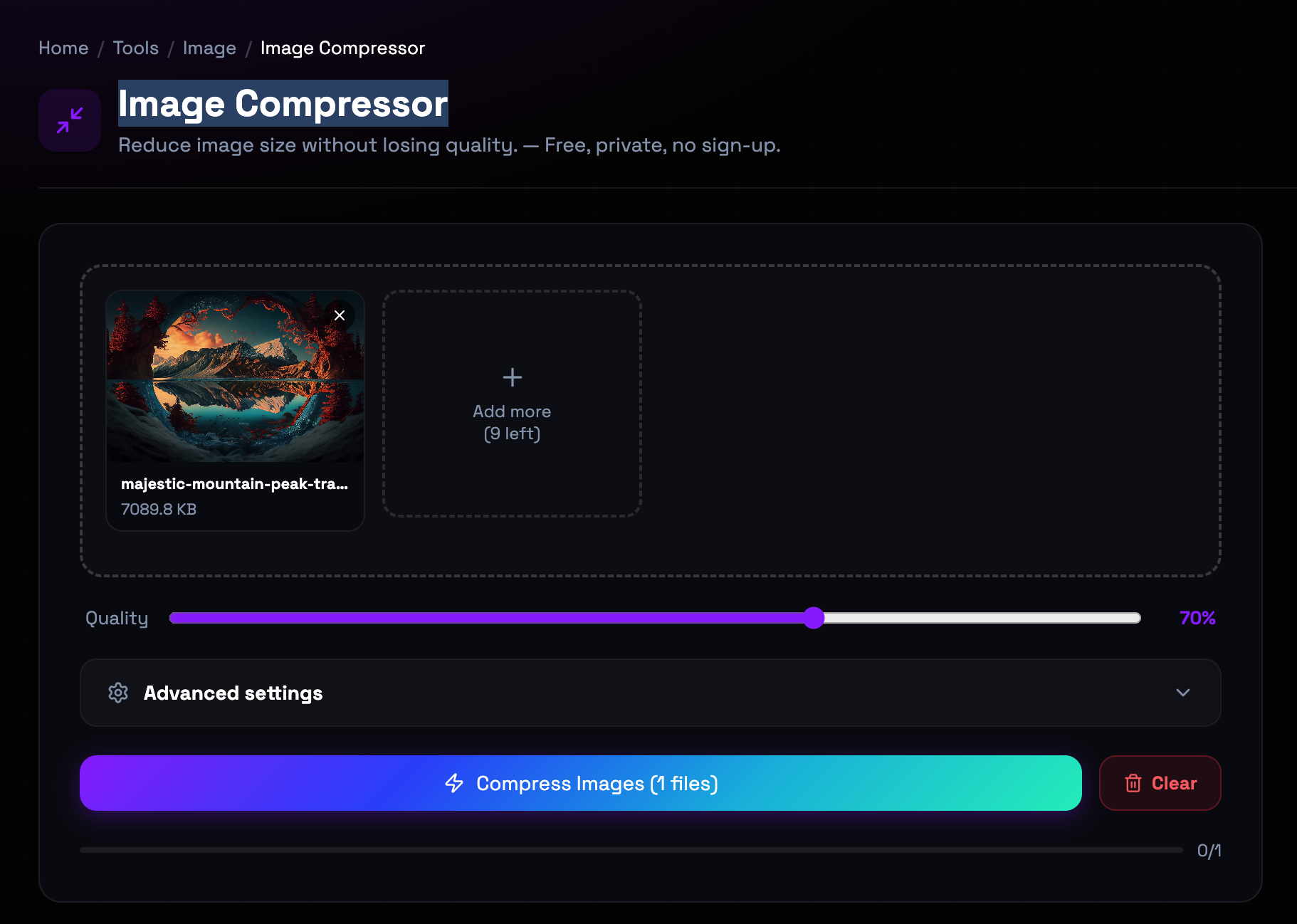
What is the Image Compressor?
Image compression reduces file size by removing redundant data while preserving visual quality. Lossy compression discards information that human vision barely notices, achieving significant size reductions. Lossless compression removes statistical redundancy without data loss, perfect for images requiring perfect fidelity. The choice between methods depends on your use case: photographs benefit from lossy compression, while graphics and text need lossless. Modern compression algorithms like WebP offer superior efficiency compared to traditional formats.
Step-by-Step: How to Use It
- Upload Your Image: Drag and drop your image or click to upload. The tool supports JPG, PNG, WebP, and other common formats up to 10MB. (upload drop zone with format icons)
- Choose Compression Method: Select between lossy (smaller files, some quality loss) or lossless (larger files, perfect quality). For photographs, lossy is recommended. (compression method toggle buttons)
- Adjust Quality Level: Use the quality slider to balance size and quality. Lower values produce smaller files with more compression artifacts. (quality slider with percentage and estimated file size)
- Compare and Download: View side-by-side comparison of original and compressed images. Download when satisfied with the quality-to-size ratio. (comparison view with download button)
Top Use Cases
- Website Performance Optimization: Large images are the #1 cause of slow page loads. Compressing images improves Core Web Vitals, SEO rankings, and user experience. Example: An e-commerce product page loads in 8 seconds with uncompressed images. After compression to 70% quality, load time drops to 2 seconds.
- Mobile Data Savings: Compressed images consume less bandwidth, saving mobile data costs and improving load times on cellular connections. Example: A photo gallery using 500MB of uncompressed data reduces to 100MB after compression, saving users 400MB per visit.
- Storage Optimization: When archiving photos where perfect quality isn't required, compression saves significant disk space and cloud storage costs. Example: A wedding photographer's archive of 10,000 RAW files (2TB) compresses to 200GB as high-quality JPGs.
- Email and Document Optimization: Many email systems and document platforms have size limits. Compression allows you to include more images within restrictions. Example: A PDF report with 20 high-res photos (50MB) compresses to 10MB, fitting within corporate email attachment limits.
Things to Watch Out For
- Compression Artifacts: Lossy compression can introduce visual artifacts like blocking, banding, or ringing around edges, especially at low quality settings. Workaround: Use quality settings above 70% for most use cases. Test compression on representative images before applying to entire collections.
- Text Readability: Compression can blur text and fine lines, making documents harder to read. This is particularly problematic for screenshots and diagrams. Workaround: For images containing text, use lossless compression or higher quality settings (85-95%). Consider PNG for text-heavy images.
- Color Accuracy: Aggressive compression can shift colors, particularly in gradients and subtle color variations, affecting product photography accuracy. Workaround: For color-critical images like product photos, use minimal compression (90-95% quality) or lossless formats.
- Irreversible Quality Loss: Once compressed with lossy methods, the discarded data cannot be recovered. Repeated compression degrades quality further. Workaround: Always keep original uncompressed files as masters. Compress only final versions for distribution. Never re-compress already-compressed images.
Frequently Asked Questions
What's the difference between lossy and lossless compression?
Lossy compression permanently discards some image data to achieve smaller file sizes. The discarded data is chosen based on what human vision is least likely to notice. Lossless compression reduces file size by removing statistical redundancy without discarding any information, so the original can be perfectly reconstructed. Lossy is ideal for photographs where some quality loss is acceptable. Lossless is essential for graphics, text, and images requiring perfect fidelity.
How much can I compress an image before quality becomes unacceptable?
The acceptable compression level depends on the image content and use case. For photographs, 70-80% quality typically produces good results with significant size reduction. For professional photography or product images, 85-95% may be necessary. For web graphics and thumbnails, 50-70% is often sufficient. Always preview the compressed image and compare with the original to determine the acceptable threshold for your specific needs.
Should I compress PNG or JPG images?
JPG images can typically be compressed further since they already use lossy compression. However, re-compressing JPGs accumulates quality loss. PNG images using lossless compression can be converted to JPG for significant size reduction if transparency isn't needed. For PNGs with transparency, consider using PNG compression tools that optimize the lossless compression without data loss.
Does image compression affect SEO?
Yes, significantly. Large, uncompressed images slow down page load times, which negatively impacts Core Web Vitals—Google's metrics for user experience. Slow-loading pages rank lower in search results. Compressed images improve load times, leading to better Core Web Vitals scores and higher search rankings. Additionally, faster pages improve user engagement metrics like bounce rate and time on site, which further influence SEO.
Can I undo image compression?
No. Lossy compression permanently discards image data. Once compressed, you cannot restore the original quality by uncompressing. This is why it's critical to keep your original, uncompressed files as masters. Always compress copies of your images, never the originals. If you need to make further edits, go back to the original file, not the compressed version.
What file format should I use after compression?
For photographs without transparency, JPG remains the best choice due to widespread support and efficient compression. For modern web applications, WebP offers superior compression efficiency—up to 30% smaller than JPG at similar quality. For images requiring transparency or perfect fidelity, PNG with lossless compression is appropriate. Consider your target platforms: WebP is supported by all modern browsers but may require fallbacks for older systems.
Ready to get started?
Access the tool immediately. No sign-up or credit card required.
Open Image Compressor